
A Mini Course · Beginner-Friendly

Microsoft Copilot at Work, made simple.

Save time, communicate better, and feel confident using Copilot in Word, Excel, Outlook, and Teams — even if you've never used AI before.

Duration
~90 min · self-paced
Audience
Business teams
Format
6 modules · prompts · quizzes
A coach's notebook with handwritten course notes, a laptop showing a Copilot sparkle icon, sticky notes for Word, Excel, Outlook, and Teams, and a steaming coffee mug.
— A coach's working notebook. Nothing fancy. Just clear next steps.

Course Overview

A small course with a big practical payoff.

"If you've ever stared at an inbox at 8:32 AM wondering where to start, this course is for you."
Audience
Business teams using Microsoft 365
Level
Beginner
Pace
Self-paced · 6 modules
You'll need
A Microsoft 365 account

By the end of this course you'll be able to:

  • Understand what Copilot is and what it can (and can't) do at work.
  • Write a clear prompt that gets useful results the first time.
  • Use Copilot inside Word, Excel, Outlook, and Teams for real tasks.
  • Avoid the most common beginner mistakes and stay safe with company data.
  • Lead a confident team rollout using the Adoption Playbook.

What's inside

  1. 01Meet CopilotWhat it is, why it matters, and what it changes about your workday.12 min
  2. 02Prompting Like a ProThe simple recipe that turns vague requests into great results.14 min
  3. 03Copilot in Word & OutlookWrite faster, reply smarter, never stare at a blank page again.18 min
  4. 04Copilot in Excel & TeamsMake sense of data and meetings without the headache.18 min
  5. 05Working Safely & SmartlyTrust, privacy, and the everyday habits that keep you out of trouble.10 min
  6. 06Team Adoption PlaybookFor managers: how to roll out Copilot across your team without the eye-rolls.16 min

The Six Modules

Six short lessons. One useful skill each.

Every module follows the same friendly rhythm: why it matters → how to do it → a real workflow → prompts to copy → a mistake to avoid → an action step → a tiny quiz. You can do them in order or jump to whichever app you use most.

01Module · 12 min

Meet Copilot

What it is, why it matters, and what it changes about your workday.

Lesson 01

What is Microsoft Copilot, really?

Why this matters

Knowing what a tool is for stops you from misusing it. Copilot is not a search engine and not a chatbot toy — it is a work assistant built into the apps you already use every day.

How to do it

  1. 01Think of Copilot as a smart helper sitting next to you inside Word, Excel, Outlook, and Teams.
  2. 02It reads the document, email, or meeting you are already working on (with your permission).
  3. 03You ask it to do something in plain English. It drafts, summarizes, analyzes, or rewrites — and you stay in control.
  4. 04You always review and edit the result before you send or save it.

Coach's tip · Copilot is a co-pilot, not an auto-pilot. You are still the one flying.
Lesson 02

Where to find Copilot

Why this matters

If you can't find the button, you can't use the tool. Copilot lives in different places, and knowing them saves frustration.

How to do it

  1. 01Open any Microsoft 365 app (Word, Excel, Outlook, Teams, PowerPoint).
  2. 02Look for the Copilot icon — a small four-pointed sparkle — usually on the Home ribbon or top-right of the window.
  3. 03There is also a standalone Copilot Chat at copilot.microsoft.com or in the Microsoft 365 app for general questions.
  4. 04If you don't see Copilot, check with your IT admin — your organization may need to assign you a license.

Coach's tip · If a feature is missing, it is almost always a license issue, not a you problem.

Lesson 03

What Copilot is good at (and not)

Why this matters

Setting realistic expectations is the difference between loving Copilot and getting frustrated by it.

How to do it

  1. 01Great at: summarizing long content, drafting first versions, explaining data, and rewriting tone.
  2. 02Good at: brainstorming, finding patterns, comparing documents, and turning bullet points into prose.
  3. 03Not great at: math you haven't given it the data for, future predictions, or tasks needing real-time information outside your files.
  4. 04Never blindly trust numbers, dates, names, or quotes — always verify.

Workflow demo · First five minutes of your day

Open Outlook → click Copilot → ask 'Summarize unread emails from this week and group by topic.' Read the summary. Decide what to act on. Total time: under 2 minutes.

Prompts to copy & use

Prompts you can use right now

Copilot Chat · Quick orientation

Explain in 3 short bullet points what Microsoft Copilot can help me with at work. Keep it simple, no jargon.

Copilot Chat · Find your starting point

I am a [your role] who spends most of my day on [emails / spreadsheets / meetings / writing]. Suggest 3 specific ways Copilot could save me time this week.

Common mistakes

  • Treating Copilot like Google. It is a co-worker, not a search box.
  • Assuming it is always right. Always read what it gives you before sending.
  • Trying to learn every feature on day one. Pick one task, master it, then add the next.

Best practices

  • Start with one repetitive task you already do every week.
  • Keep a notes file of prompts that worked. Reuse them.
  • Talk to Copilot the way you'd talk to a new intern: clear, friendly, with context.

Lesson summary

Copilot is a built-in work assistant inside Microsoft 365. It reads your stuff (with permission), helps you draft and analyze in plain English, and you stay in charge.

Action step

Open Copilot today, type one question about your job, and notice how it responds. That's it. You've started.

Knowledge Check

Quick quiz — no pressure

Q01

Which sentence best describes Microsoft Copilot?

Q02

Which task is Copilot NOT well-suited for?

02Module · 14 min

Prompting Like a Pro

The simple recipe that turns vague requests into great results.

Lesson 01

Why prompts matter

Why this matters

Copilot can only help as well as you can describe what you want. A clear prompt gets a clear answer. A vague prompt gets a vague answer. Five extra seconds of thinking saves five minutes of fixing.

How to do it

  1. 01Read this weak prompt: 'Write something about our project.' What's missing?
  2. 02Now read this strong prompt: 'Write a one-paragraph status update about the Q3 website redesign for our weekly leadership email. Audience: non-technical executives. Tone: confident, brief.'
  3. 03The strong one tells Copilot the goal, the context, and the expected style. That is the recipe.

Lesson 02

The GCSE prompt formula

Why this matters

A formula gives you a starting point when your mind goes blank. Memorize this one and you'll never write a bad prompt again.

How to do it

  1. 01G — Goal: what do you want as the final result? (e.g., 'a 3-bullet summary')
  2. 02C — Context: who is this for and what's the situation? (e.g., 'for my manager who hasn't seen the file yet')
  3. 03S — Source: what should Copilot use? (e.g., 'this Word document', 'the meeting from yesterday')
  4. 04E — Expectation: tone, length, format? (e.g., 'professional, under 100 words, in bullet points')

Coach's tip · If your result is wrong, you usually missed one of the four letters. Add it and try again.

Lesson 03

Iterating: the second prompt is where the magic is

Why this matters

First drafts from Copilot are like first drafts from anyone — fine, not great. The skill is in the follow-up.

How to do it

  1. 01Read what Copilot gave you. Is it close? Good. Don't restart — refine.
  2. 02Use simple follow-ups: 'Make it shorter,' 'Use a friendlier tone,' 'Add a closing line that asks for feedback.'
  3. 03Treat the conversation like editing a draft together. You don't need to write the perfect prompt the first time.

Workflow demo · Refining a customer email

First prompt: 'Draft a reply telling the customer their order is delayed.' Copilot drafts something stiff. Follow-up: 'Make it warmer, apologize once, and offer a 10% discount on their next order.' Done.

Prompts to copy & use

Prompts you can use right now

Copilot Chat · GCSE template you can reuse

Goal: [what I want]. Context: [who it's for, the situation]. Source: [the file or info to use]. Expectation: [tone, length, format].

Copilot Chat · Improve a weak prompt

Here is a prompt I wrote: '[paste your prompt]'. Suggest 3 ways to make it clearer and more specific so I get a better result.

Copilot Chat · Quick refine

Take that last response and make it: shorter, friendlier, and end with one clear next step.

Common mistakes

  • Writing one-word prompts like 'summarize'. Copilot doesn't know which file or for whom.
  • Giving up after the first attempt. Refining is the real skill.
  • Asking for too many things at once. Break big asks into 2–3 smaller prompts.

Best practices

  • Save your best prompts in a personal note. Reuse and tweak.
  • Always tell Copilot the audience. 'For my manager' produces different results than 'for a customer.'
  • When stuck, ask Copilot: 'How could I rephrase my question to get a better answer?'

Lesson summary

Great prompts have a Goal, Context, Source, and Expectation. Don't aim for perfect on prompt #1 — refine in prompt #2.

Action step

Take a task you'll do this week (an email, a summary, a draft) and write a GCSE prompt for it. Save it in a Notes file labeled 'My Prompt Library.'

Knowledge Check

Quick quiz — no pressure

Q01

What does the C in GCSE stand for?

Q02

Your first result is okay but a bit too formal. What's the best next step?

03Module · 18 min

Copilot in Word & Outlook

Write faster, reply smarter, never stare at a blank page again.

Lesson 01

Word: from blank page to first draft in 60 seconds

Why this matters

The hardest part of writing is starting. Copilot eliminates the blank page so you can spend your time editing and improving — which is the easier, faster part.

How to do it

  1. 01Open a new Word document.
  2. 02Click the Copilot icon (sparkle) on the Home ribbon, or press the floating prompt that says 'Draft with Copilot.'
  3. 03Type what you want, e.g., 'Draft a one-page project kickoff for our new internal training program. Audience: department heads. Tone: clear and motivating.'
  4. 04Copilot creates a draft. Read it. Click 'Keep it' or 'Regenerate' or refine with a follow-up like 'Add a section on timeline.'
  5. 05Edit anything that's wrong. Save. Done.

Workflow demo · Status report Friday

Drop your bullet-point notes into Word, then prompt: 'Turn these notes into a polished weekly status report for my team. Use headings: Wins, Risks, Next Steps. Keep it under 250 words.'

Lesson 02

Word: rewrite, summarize, and shorten existing text

Why this matters

Most workplace writing is editing, not creating. Copilot is excellent at adjusting what's already there.

How to do it

  1. 01Highlight any paragraph in Word.
  2. 02Right-click → 'Rewrite with Copilot' or use the Copilot pane on the right.
  3. 03Choose: shorter, more formal, simpler, more confident, etc.
  4. 04For long documents, ask: 'Summarize this document in 5 bullets, then list 3 questions a reader might ask.'

Coach's tip · Use 'Explain like I'm new here' to translate jargon-heavy text into plain English.

Lesson 03

Outlook: tame your inbox in 5 minutes

Why this matters

Email is where most knowledge workers lose time. Copilot can read, prioritize, and draft — so your morning starts with a plan, not a panic.

How to do it

  1. 01Open Outlook. Click the Copilot icon (top right or in the ribbon).
  2. 02Try: 'Summarize my unread emails from the last 24 hours and flag anything urgent.'
  3. 03When replying to a long email thread, click Copilot inside the reply window → 'Draft a reply' → describe what you want to say in one sentence.
  4. 04Use 'Coaching by Copilot' to check tone before you send: it warns you if a reply sounds harsh, unclear, or too long.

Workflow demo · Monday morning triage

8:30 AM: Open Outlook. Prompt: 'Summarize emails I haven't read since Friday. Group by sender and topic. Flag anything that mentions deadlines or my name in the subject line.' You now have a 30-second action plan.

Prompts to copy & use

Prompts you can use right now

Word · Draft a document from notes

Turn these notes into a polished [type of document] for [audience]. Use the headings [list]. Keep it under [N] words. Tone: [professional/friendly/confident].

Word · Summarize a long doc

Summarize this document in 5 bullet points for someone who hasn't read it. Then list 3 questions they might ask.

Word · Rewrite a paragraph

Rewrite this paragraph to be 30% shorter, more confident, and easier to skim.

Outlook · Inbox triage

Summarize my unread emails from the past 24 hours. Group by topic. Flag anything urgent or that asks me a direct question.

Outlook · Polite decline

Draft a reply that politely declines this meeting request, suggests two alternative times next week, and keeps a warm tone.

Outlook · Catch-up reply

I've been out for 3 days. Summarize this thread and draft a short reply that acknowledges I'm catching up and asks for the key decision needed from me.

Common mistakes

  • Sending a Copilot draft without reading it. Always proofread — names, numbers, and dates need a human eye.
  • Asking Copilot to summarize a confidential email and pasting the result into a public chat. Keep sensitive info inside trusted apps.
  • Forgetting to specify the audience. A reply to your boss reads differently than a reply to a vendor.

Best practices

  • Use the 'Coaching' feature in Outlook before sending tough emails. It's a free second opinion.
  • Save 3–5 reusable email prompts (decline, follow-up, thank-you, status update). 80% of replies fit these templates.
  • In Word, dictate rough thoughts and let Copilot polish. Talking is faster than typing.

Lesson summary

In Word, Copilot drafts, rewrites, and summarizes. In Outlook, it triages your inbox and helps you reply with the right tone. Both work best when you give it audience and intent.

Action step

Tomorrow morning, open Outlook, ask Copilot to summarize your inbox, and reply to one email using a Copilot draft. Notice the time saved.

Knowledge Check

Quick quiz — no pressure

Q01

You have a long email thread and need to reply quickly. What's the best Copilot move?

Q02

Which is the most important thing to do before sending a Copilot-drafted email?

04Module · 18 min

Copilot in Excel & Teams

Make sense of data and meetings without the headache.

Lesson 01

Excel: ask your spreadsheet a question

Why this matters

Most people only use 5% of Excel's power because formulas feel scary. Copilot lets you ask questions in normal English and get answers, charts, and formulas back.

How to do it

  1. 01First, format your data as a table: select the data → press Ctrl+T → click OK. Copilot needs structured tables to work well.
  2. 02Click the Copilot icon on the Home ribbon.
  3. 03In the Copilot pane, type a question like 'Which region had the highest sales growth last quarter?'
  4. 04Copilot can also: add a formula column, highlight rows that match a rule, suggest charts, and explain what a column means.
  5. 05Click 'Insert' to add Copilot's chart, formula, or column directly into your sheet.

Workflow demo · Sales review prep

Open the monthly sales tracker → format as a table → ask Copilot 'Show top 5 customers by revenue this quarter and create a bar chart.' You now have a slide-ready visual in 20 seconds.

Coach's tip · If Copilot says it can't analyze your data, it almost always means the range isn't formatted as a table. Ctrl+T fixes it 90% of the time.

Lesson 02

Excel: formulas in plain English

Why this matters

Forgetting formula syntax shouldn't slow you down. Copilot writes the formula for you — and explains it so you learn.

How to do it

  1. 01In any cell, click Copilot or use the Copilot pane.
  2. 02Type what you want: 'Add a column that calculates the percentage difference between Column C and Column D.'
  3. 03Copilot proposes a formula. Click 'Insert column' or copy the formula.
  4. 04Ask 'Explain this formula in simple words' to learn while you work.

Lesson 03

Teams: meetings that recap themselves

Why this matters

Notes, action items, and follow-ups eat hours every week. With recording or transcription on, Copilot in Teams handles all three automatically.

How to do it

  1. 01Before the meeting: turn on transcription (the 'Record and transcribe' button). This is what Copilot reads.
  2. 02During the meeting: open the Copilot pane on the right. Ask 'What have we agreed so far?' or 'Was anything decided about the budget?'
  3. 03After the meeting: open the meeting in your calendar → click Recap → Copilot gives you a summary, decisions, and action items.
  4. 04If you missed a meeting, open it in Teams chat → click 'Catch me up' → Copilot summarizes what happened.

Workflow demo · Skipping a meeting (responsibly)

You missed the project sync. Open the meeting → 'Catch me up in 5 bullets and list any action items assigned to me.' You're up to speed in 30 seconds.

Prompts to copy & use

Prompts you can use right now

Excel · Find insights

Analyze this table and tell me the top 3 trends, plus 2 things that look unusual or worth investigating.

Excel · Build a formula

Write a formula that calculates [what you want]. Use plain language to explain how the formula works.

Excel · Create a chart

Create the best chart to show [comparison/trend/breakdown] from this data, and explain why this chart type fits.

Teams · Live meeting check-in

Based on the conversation so far, what have we agreed on, what is still unclear, and who has the next action?

Teams · After-meeting recap

Summarize this meeting in: 1) 3-sentence overview, 2) decisions made, 3) action items with owners, 4) any open questions.

Teams · Catch me up on a chat

I've been away for 2 days. Summarize this Teams channel since [date], highlight anything urgent, and list anything that needs my reply.

Common mistakes

  • Trying to analyze unstructured data. Always format as a Table (Ctrl+T) first.
  • Trusting Copilot's numbers without checking. Spot-check at least one calculation.
  • Recording a Teams meeting without telling participants. Always announce that recording is on.

Best practices

  • Name your Excel columns clearly ('Revenue Q1', not 'Col B'). Copilot uses the names.
  • Turn on Teams transcription as a default for internal recurring meetings.
  • After each meeting, paste the recap into the relevant project file. Future-you will thank present-you.

Lesson summary

Excel becomes conversational once data is in a Table. Teams becomes self-documenting when transcription is on. Together, they save hours per week.

Action step

Pick one spreadsheet you use weekly. Format it as a table. Ask Copilot to find one trend you didn't know about.

Knowledge Check

Quick quiz — no pressure

Q01

What is the most important step before asking Copilot to analyze data in Excel?

Q02

You missed an hour-long Teams meeting. What's the fastest way to catch up?

05Module · 10 min

Working Safely & Smartly

Trust, privacy, and the everyday habits that keep you out of trouble.

Lesson 01

What Copilot can and can't see

Why this matters

People hesitate to use Copilot because they worry about privacy. Knowing the rules makes you confident, not nervous.

How to do it

  1. 01Microsoft 365 Copilot only sees what you can already see — your emails, your files, your meetings inside your organization.
  2. 02It does not use your company's data to train public AI models.
  3. 03Your prompts and the responses stay inside your organization's tenant under your existing security controls.
  4. 04If you use the free Copilot Chat (without a work license), do not paste confidential information — that's a different product with different rules.

Coach's tip · When in doubt, ask: 'Would I email this content to a personal Gmail address?' If no, don't paste it into a non-work Copilot.

Lesson 02

Spotting hallucinations (when Copilot makes things up)

Why this matters

AI sometimes invents facts that sound right. Catching it is a skill, and it's easier than you think.

How to do it

  1. 01Always verify: names of people, exact numbers, dates, quotes, and citations.
  2. 02If Copilot mentions a source, click it. If there's no source, treat the statement like a rumor.
  3. 03Ask follow-up: 'Where in the document did you find that?' If the answer is vague, it probably made it up.
  4. 04When stakes are high (legal, financial, customer-facing), have a human review.

Lesson 03

Three safety habits

Why this matters

Habits beat rules. Three small ones will protect you 95% of the time.

How to do it

  1. 01Habit 1 — Read before sending. Always read every Copilot output before it leaves your hands.
  2. 02Habit 2 — Verify the risky bits. Numbers, names, dates, quotes. Spot-check at least one.
  3. 03Habit 3 — Mind the channel. Confidential info → only in licensed Microsoft 365 Copilot. Public web Copilot → only general questions.

Prompts to copy & use

Prompts you can use right now

Copilot Chat · Sanity-check a draft

Read the draft below and flag anything that might be: factually wrong, too aggressive in tone, or unclear. List each concern in one short bullet.

Copilot Chat · Ask for the source

For each fact in your last answer, tell me which document or email you got it from. If you don't have a source, say so.

Common mistakes

  • Pasting confidential customer data into the public Copilot website.
  • Quoting Copilot statistics in a presentation without verifying.
  • Assuming legal or HR replies don't need a human review.

Best practices

  • Treat Copilot output like a smart intern's first draft: useful, but always reviewed.
  • Keep a 'Copilot got it wrong' log for one week. You'll quickly learn its blind spots.
  • When in doubt about data sensitivity, ask your IT or compliance team before pasting.

Lesson summary

Microsoft 365 Copilot respects your existing permissions and doesn't train on your data. Still, you read, verify, and pick the right channel for sensitive info.

Action step

Right now, write down on a sticky note: 'Read · Verify · Right channel.' Stick it to your monitor.

Knowledge Check

Quick quiz — no pressure

Q01

Which is the safest way to use Copilot with confidential client data?

Q02

Copilot gives you a confident statistic with no source. What do you do?

06Module · 16 min

Team Adoption Playbook

For managers: how to roll out Copilot across your team without the eye-rolls.

Lesson 01

The 30-day rollout plan

Why this matters

Tools fail when adoption is left to chance. A simple 30-day plan creates momentum and makes Copilot part of how your team works.

How to do it

  1. 01Week 1 — Spark: send a kickoff email, host a 30-min demo, and ask each person to try one prompt.
  2. 02Week 2 — Practice: each team member picks one weekly task to do with Copilot. Share wins in a #copilot-tips channel.
  3. 03Week 3 — Spread: hold a 'show and tell' where 3 people demo their best prompt or workflow.
  4. 04Week 4 — Settle: collect feedback, retire prompts that didn't work, and lock in the 5–10 prompts your team uses most.

Lesson 02

Pick the right pilot users

Why this matters

Mandatory rollouts kill enthusiasm. Volunteer champions create it.

How to do it

  1. 01Choose 3–5 'Copilot Champions' across different roles. Look for curious, helpful people — not necessarily the tech experts.
  2. 02Give them early access and a clear mission: find one workflow where Copilot saves real time.
  3. 03Have them share their wins (and flops) in weekly team standups.
  4. 04Champions become the first line of help, which scales much better than IT tickets.

Lesson 03

Measure what matters

Why this matters

If you measure 'logins,' you'll get logins and no value. Measure outcomes.

How to do it

  1. 01Time saved per task — ask team members to estimate before and after.
  2. 02Quality of output — are emails clearer, decks tighter, recaps more accurate?
  3. 03Confidence — survey: 'How confident are you using Copilot? (1–5)' before and after the 30 days.
  4. 04Use cases adopted — how many repeating workflows have moved from manual to Copilot-assisted?

Coach's tip · Share one team-wide success story per month. Stories drive adoption faster than dashboards.

Prompts to copy & use

Prompts you can use right now

Copilot Chat · Manager: kickoff message

Draft a friendly kickoff email to my team announcing a 30-day Copilot pilot. Audience: 12 people in [department]. Tone: encouraging, no pressure. Include: why we're trying it, what they need to do this week, and where to ask for help.

Copilot Chat · Manager: weekly check-in

Draft a 4-bullet end-of-week update that summarizes our team's Copilot pilot progress. Include: 1 win, 1 challenge, 1 tip, 1 ask.

Copilot Chat · Manager: collect feedback

Write 5 simple survey questions to ask my team after a 30-day Copilot pilot. Mix scale (1–5) and one open-ended question.

Common mistakes

  • Forcing everyone to start at once. Voluntary champions outperform mandatory rollouts.
  • Measuring only logins or seats. That tells you nothing about value.
  • Ignoring people who feel anxious about AI. Address fears directly — they don't disappear by being ignored.

Best practices

  • Create a #copilot-tips channel in Teams. Pin the top 10 prompts.
  • Celebrate small wins publicly. 'I saved 30 min on the Monday report' is gold.
  • Pair every new Copilot use case with a clear 'before' and 'after' story.

Lesson summary

Roll out in 30 days using a Spark · Practice · Spread · Settle plan. Pick volunteer champions, measure time saved and confidence, and tell stories.

Action step

Schedule a 30-minute 'Meet Copilot' kickoff with your team in the next 2 weeks. Use the kickoff email prompt above to write it.

Knowledge Check

Quick quiz — no pressure

Q01

What's the best metric to measure Copilot adoption success?

Q02

Who makes the best 'Copilot Champion' on a team?

Team Adoption Playbook

A 30-day rollout that won't make your team groan.

For managers and team leads. Tools fail when adoption is left to chance. This four-week plan creates real momentum without forcing anyone, measures what actually matters, and turns one or two curious teammates into champions who carry the rest of the team.

  1. Week 01

    Spark

    Send the kickoff email. Host a 30-minute live demo. Ask each person to try one prompt and share it.

    Goal: curiosity, not mastery.

  2. Week 02

    Practice

    Each person picks one weekly task to do with Copilot. Share wins and flops in a #copilot-tips channel.

    Goal: one repeatable workflow per person.

  3. Week 03

    Spread

    Hold a 'show & tell' standup where 3 champions demo their best prompt. Cross-pollinate ideas across roles.

    Goal: stories travel.

  4. Week 04

    Settle

    Collect feedback. Retire prompts that didn't work. Lock in the 5–10 prompts your team uses most.

    Goal: habits that stick.

Measure outcomes, not logins.

Vanity metrics make pretty dashboards and zero believers. Pick the four beside this.

  • Time saved per task

    Estimate before vs after — the realest signal.

  • Confidence (1–5)

    Survey before and after the 30 days.

  • Quality of output

    Are emails clearer? Decks tighter? Recaps more accurate?

  • Use cases adopted

    How many recurring workflows now use Copilot?

Final Workflow Demo

A day in the life, using Copilot.

Six moments from a normal workday — exactly when Copilot earns its keep. Read it as a sequence, then steal the prompts that match your own day.

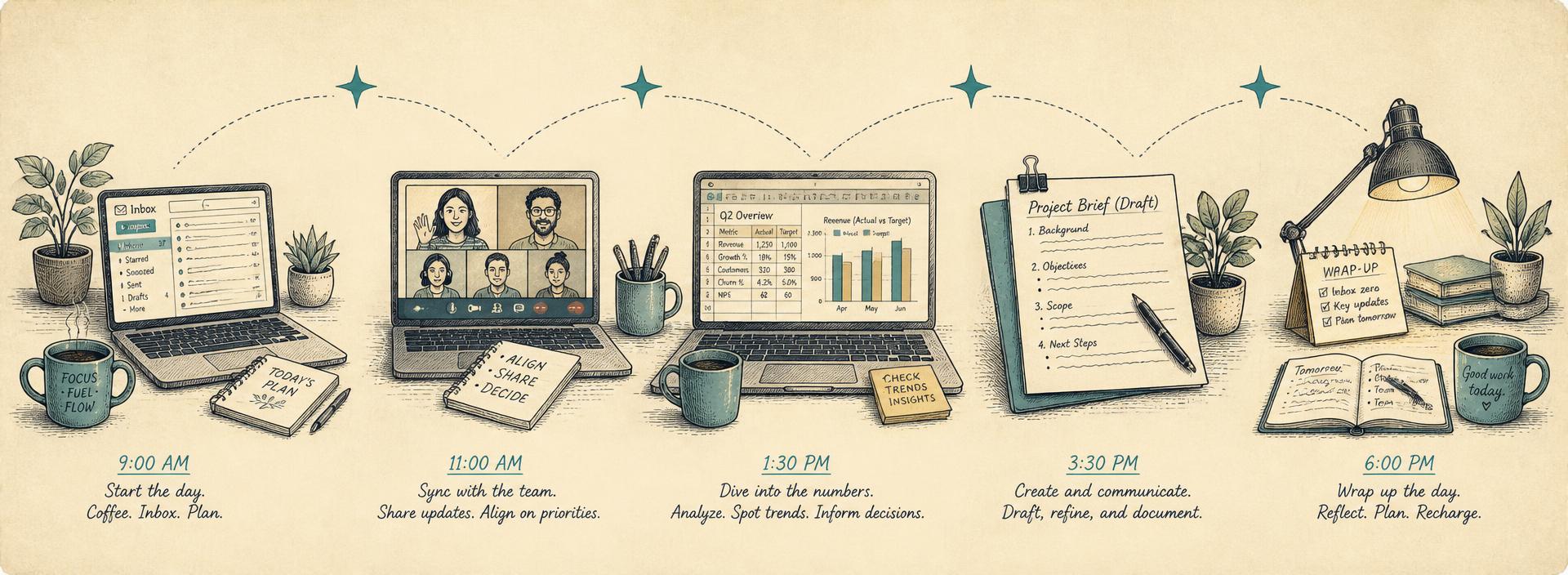
Illustrated timeline of a workday: morning email, a Teams call, a spreadsheet review, drafting a document, and an evening wrap-up.
  1. 01

    8:30 AM

    Outlook · Morning

    Inbox triage

    Prompt

    Summarize unread emails from the last 24 hours. Group by topic. Flag anything urgent or that asks me a direct question.

    Result

    A prioritized 30-second action plan instead of a 45-minute scroll.

  2. 02

    9:30 AM

    Teams · Morning

    Catch up on missed meeting

    Prompt

    Catch me up on yesterday's project sync in 5 bullets and list any action items assigned to me.

    Result

    You walk into your 10 AM call already up to speed.

  3. 03

    10:30 AM

    Word · Morning

    Draft the weekly status report

    Prompt

    Turn these bullet notes into a polished weekly status report. Use headings: Wins, Risks, Next Steps. Under 250 words. Tone: confident.

    Result

    First draft in 30 seconds. You spend 10 minutes editing instead of 45 writing.

  4. 04

    1:00 PM

    Excel · Midday

    Quarterly sales review

    Prompt

    Show top 5 customers by revenue this quarter and create a bar chart.

    Result

    Slide-ready visual in 20 seconds.

  5. 05

    3:00 PM

    Teams · Midday

    Live meeting check-in

    Prompt

    Based on the conversation so far, what have we agreed on, what's still unclear, and who has the next action?

    Result

    You wrap the meeting on time with a clean recap already drafted.

  6. 06

    5:00 PM

    Outlook · Evening

    End-of-day replies

    Prompt

    Draft a friendly reply that confirms the meeting, suggests one agenda item, and closes warmly.

    Result

    Inbox at zero. You leave on time.

Pocket Reference

The one-page Copilot cheat sheet.

Print this. Tape it next to your monitor. The whole course in one glance.

Beginner Tips

  • Start with one task, not the whole tool.
  • Talk to Copilot like a thoughtful intern with no context.
  • Always read the result before you send or save.
  • Save your best prompts. Reuse beats reinvent.
  • If the answer is wrong, refine — don't restart.
  • When in doubt, ask Copilot how to ask Copilot.
AppUse it forStarter prompt
WordDraft from notes, summarize long docs, rewrite paragraphs.Turn these notes into a 1-page status report for my manager. Tone: confident, under 250 words.
ExcelFind insights, create formulas, build charts.Format as a Table (Ctrl+T), then ask: 'Top 3 trends in this data and one chart that explains them.'
OutlookTriage inbox, draft replies, check tone before sending.Summarize unread emails from the past 24h. Group by topic. Flag anything urgent.
TeamsRecap meetings, catch up on chats, capture action items.Summarize this meeting in 3 sentences, then list decisions and action items with owners.
Copilot ChatBrainstorm, plan, learn, and stitch information across apps.Goal · Context · Source · Expectation. Always include all four.

Final Recap

Six things to remember.

Close the laptop, take a breath, and remember these. Everything else builds on them.

  1. 01

    Copilot is a co-pilot inside Microsoft 365 — you stay in control.

  2. 02

    Great prompts have a Goal, Context, Source, and Expectation.

  3. 03

    Word and Outlook help you write and reply faster.

  4. 04

    Excel and Teams turn data and meetings into clarity.

  5. 05

    Stay safe: read, verify, and use the right channel for sensitive info.

  6. 06

    Roll out to your team with a 30-day Spark · Practice · Spread · Settle plan.

You don't need to learn everything Copilot can do. You need to learn the three things you do every week and let Copilot help with those. The rest takes care of itself.
— Your friendly Copilot coach